
Software Updates
PrivateLAN keeps itself up to date through a built-in update mechanism. This page explains what gets updated, how, and how to verify what is installed.
Running updates
The updates page lists available updates together with their description and changelog. From here you can:
- Install the update the appliance offers: normally the latest version, or first an intermediate version when the latest one cannot be installed directly on your current version
- Enable or disable automatic updates (Linux security updates are always applied automatically and cannot be disabled)
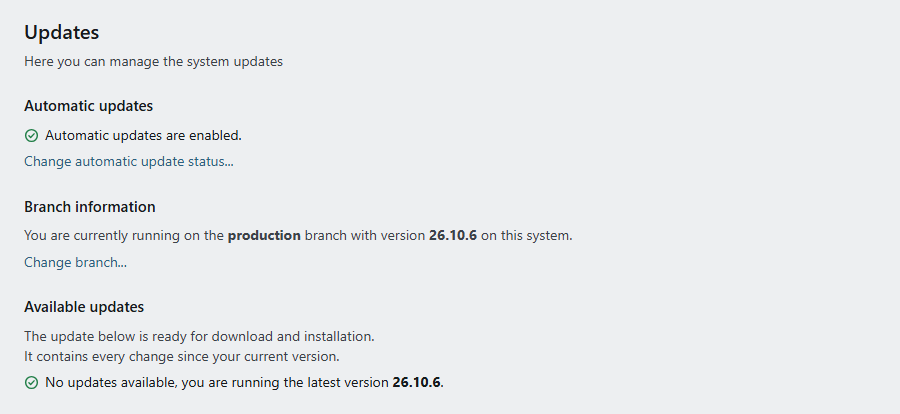
Administrators can additionally choose the update branch:
- Production — stable releases only (
x.y.z) - Development — includes pre-release versions (
x.y.z-dev,x.y.z-rc, ...). These are only offered to PrivateLAN's own systems.
How updates are delivered
The appliance fetches its updates from PrivateLAN's release service and installs one only after two checks: the release carries PrivateLAN's signature, and every downloaded file is exactly what was signed. A release that fails either check is not installed. The appliance does not hold a copy of PrivateLAN's software repositories or any key to them: only the files of the version it runs, and those of the previous version so a failed update can be undone.
- Licence link. The release service only delivers updates to an appliance whose licence is linked to the appliance's own update key. The key is created when the default admin password is changed, and every licence requested after that includes it. System > License shows whether the link is in place; see Licenses. An appliance without internet access does not need it: it is updated offline, see below.
- What the update check sends. An appliance with internet access asks the release service every hour, at every update and, when you open the update page, at most once every ten minutes (once a minute on the Development branch). This check does not depend on the telemetry setting: without it the appliance cannot receive security updates. A linked appliance signs its requests and sends its instance ID, the installed version, the branch and a fingerprint of its virtual machine; an appliance that is not linked yet only asks which versions are available. Nothing from your network is sent: no configuration, devices, users or log lines. PrivateLAN keeps the request log for 180 days and stores IP addresses only as a keyed hash; see the privacy statement.
- Intermediate versions. Some releases can only be installed from a certain version on. The update page then says so, and the update first installs the intermediate version; a following update brings you to the newest one.
- Version 26.10.3. From this version on each appliance has its own keys for the credentials it stores: switch logins and SSH keys, two-factor seeds, camera and webhook credentials, and the key for an on-premises AI service. The appliance creates them when it is taken into use. An appliance on 26.10.2 or earlier cannot be updated to 26.10.3 or later, online or offline; install a new VM image instead (see Offline Updates). An appliance on 26.10.3 or later cannot be taken back to 26.10.2 or earlier, because those versions cannot read its credentials.
- Failed updates. When an update fails, the appliance returns all of its software to the version it ran before.
No internet access
An appliance that cannot reach the internet has nowhere to fetch updates from. Such a system is updated offline instead, by replacing its OS disk with the one from a newer VM image while the database and log disks stay attached. See Offline Updates.
Reboot required
Some updates, typically Linux security updates, require a reboot to take effect. When this is the case, a reboot banner is shown with a button to reboot the system immediately. After clicking it, the system reboots after a short countdown and PrivateLAN automatically checks when it is back online.
Automatic self-healing
PrivateLAN continuously supervises its own core services — the web interface, database, RADIUS authentication, antivirus and system logging — as well as the web application itself. If something stops working, the appliance tries to recover on its own, without any action from you.
To avoid reacting to momentary hiccups (such as the brief service restarts that happen during a normal update), the watchdog only steps in once a problem has genuinely persisted for several minutes, and it stands aside completely while an update is running.
When a sustained problem is detected, recovery happens in escalating steps:
- Restart the affected service(s). If the web interface is returning errors, the web components are restarted first.
- Re-apply the current installation. If restarting was not enough, the appliance re-runs its own update/deployment process to repair the configuration — even if you have automatic updates switched off.
- Reboot as a last resort. Only if the previous steps did not help and network authentication (RADIUS) is also down does the appliance reboot itself. As long as RADIUS is still authenticating your devices your network keeps working, so a disruptive reboot is deliberately avoided. Automatic reboots happen only on production systems and are rate-limited to prevent reboot loops.
Every recovery action is logged locally and, if telemetry is enabled, reported to our team so we can follow up proactively. Administrators can run the check manually over SSH to see a live status overview of every monitored service.
Firmware updates
Every update also checks whether a device firmware update is available (for example a UEFI Secure Boot revocation database update) and shows a banner on the updates page when one is found. Unlike software updates, firmware updates are not applied automatically — a failed firmware update carries more risk than a failed software update, so a confirmation is required. Click Apply firmware update on the banner to review and apply it directly from the updates page; no SSH access is needed. If the update requires a reboot to take effect, the familiar reboot banner appears afterwards.
Changelog
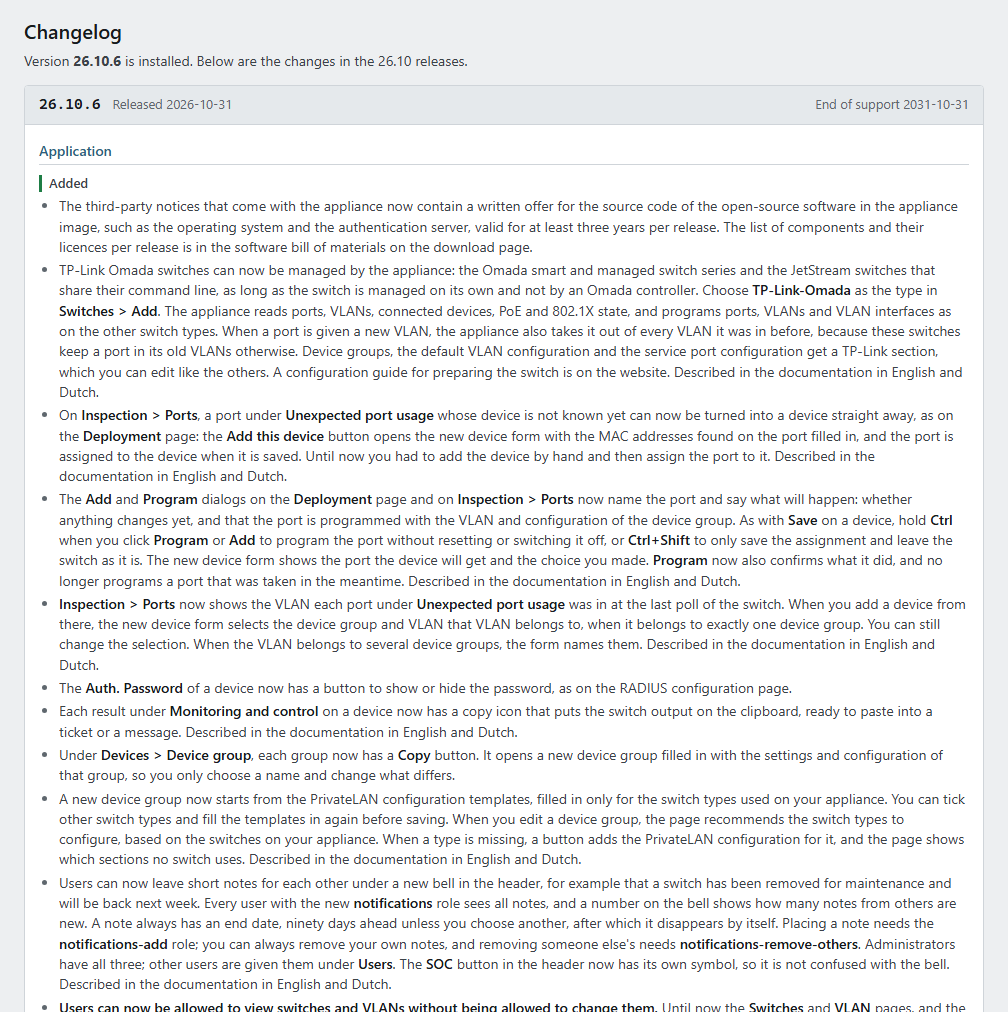
The changelog page shows the release notes of the releases in the same series as the installed version - on 26.9.5, for example, those of every 26.9 release - so you can see exactly what changed before or after updating. The release notes of older series are on the PrivateLAN website.
Software Bill of Materials (SBOM)
PrivateLAN can generate a Software Bill of Materials (SBOM) in CycloneDX/JSON format, listing all software components in the system together with a SHA256 hash for verification. This is useful for compliance with the European Cyber Resilience Act (CRA) and for your own security audits.

- Generate — makes a new SBOM of the installed system
Antivirus definitions
The ClamAV antivirus engine used by PrivateLAN needs regularly updated virus definitions. The current definition date is shown on the security page. If the appliance has no internet access, the definition files (main.cvd, daily.cvd, bytecode.cvd) can be uploaded manually.
